|
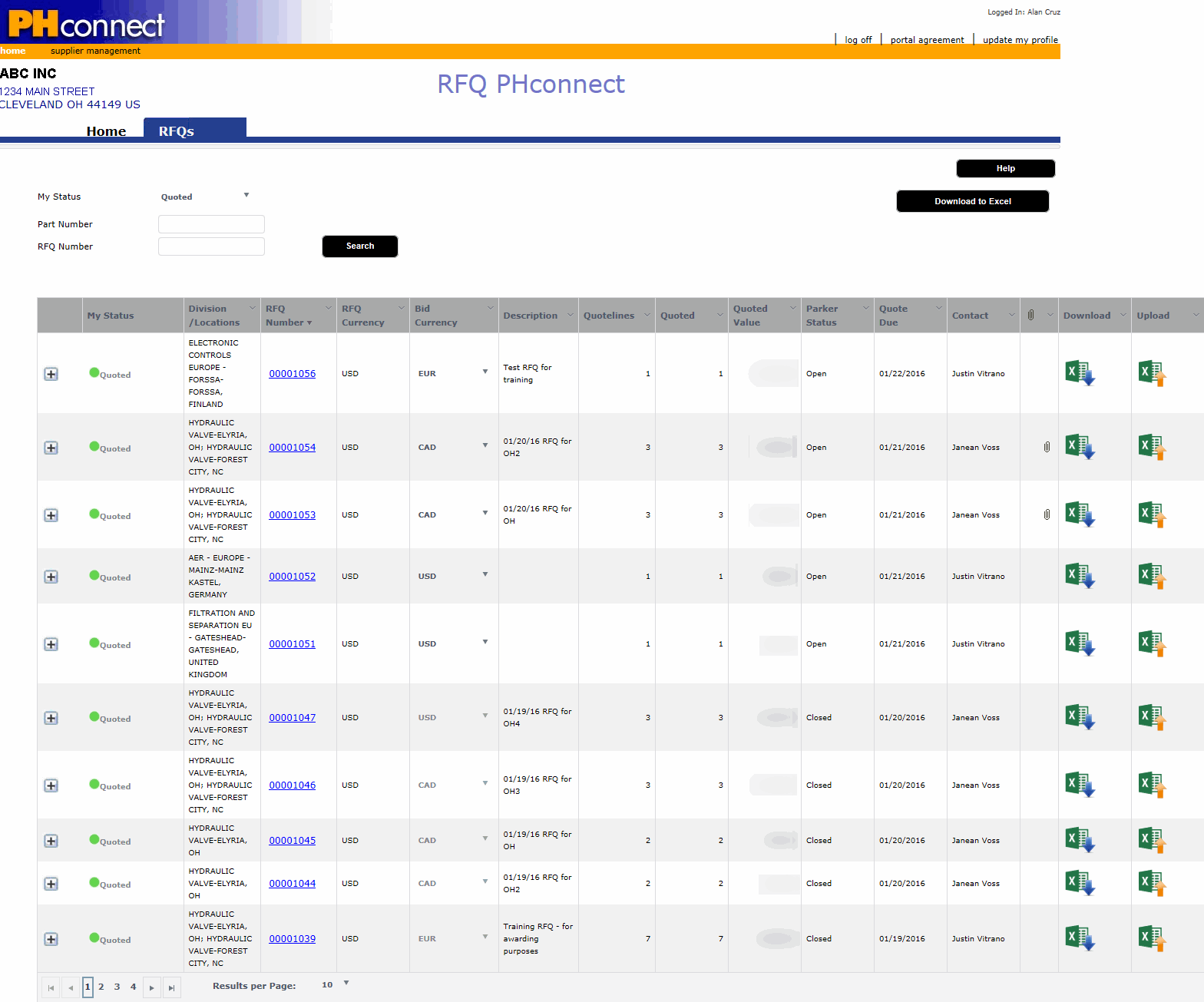
To see a sample RFQ List Screen at full size, click the image on the left. It will appear at the bottom of this topic page. Click it again to close it. |
Search for specific RFQs by Status, Part Number, or RFQ Number
IMPORTANT: Any filters you apply will be retained in the system for you when you return to the RFQ List screen. |
Review the RFQs that are in your queue, and the associated details
Click  to identify whether you are Not Interested or Will
Quote for specific RFQs
to identify whether you are Not Interested or Will
Quote for specific RFQs
Click  to open the attachment for the
RFQ
to open the attachment for the
RFQ
Click  to
review the quote line details for an RFQ. If there is a drawing number
for a part, you can download the drawing through the Drawing
Number field in the quote line details.
to
review the quote line details for an RFQ. If there is a drawing number
for a part, you can download the drawing through the Drawing
Number field in the quote line details.
If it is an active field, select the Bid Currency. The quoted currency is converted into the RFQ currency based on the monthly Parker spot rate.
Click Download to Excel if you want to review the content on the RFQ List screen in Excel.
NOTE: Use the Download to Excel option if you want to review all of the RFQs in your queue. If you want to quote on an individual RFQ in Excel, see the next bullet. |
Click  to download the RFQ to Excel,
and quote it in Excel. You will then need to upload the quoted RFQ
back to the Strategic Sourcing Tool.
to download the RFQ to Excel,
and quote it in Excel. You will then need to upload the quoted RFQ
back to the Strategic Sourcing Tool.
If you downloaded the RFQ to Excel to quote it, click  to upload the quoted RFQ back
to Excel.
to upload the quoted RFQ back
to Excel.
To quote the RFQ in the Strategic Sourcing Tool itself, either:
Click the RFQ Number to view the RFQ Details screen and quote the RFQ. OR
Click
to expand the RFQ and quote it. Currency values are displayed
in local currency.